

BEFORE YOU BEGIN
- Connect Salesforce to RevenueHero.
- To match on opportunities, turn on Enable Opportunities in your Salesforce integration settings.
- To match on a custom object, add that object in your Salesforce integration settings first.
How matching works in a router
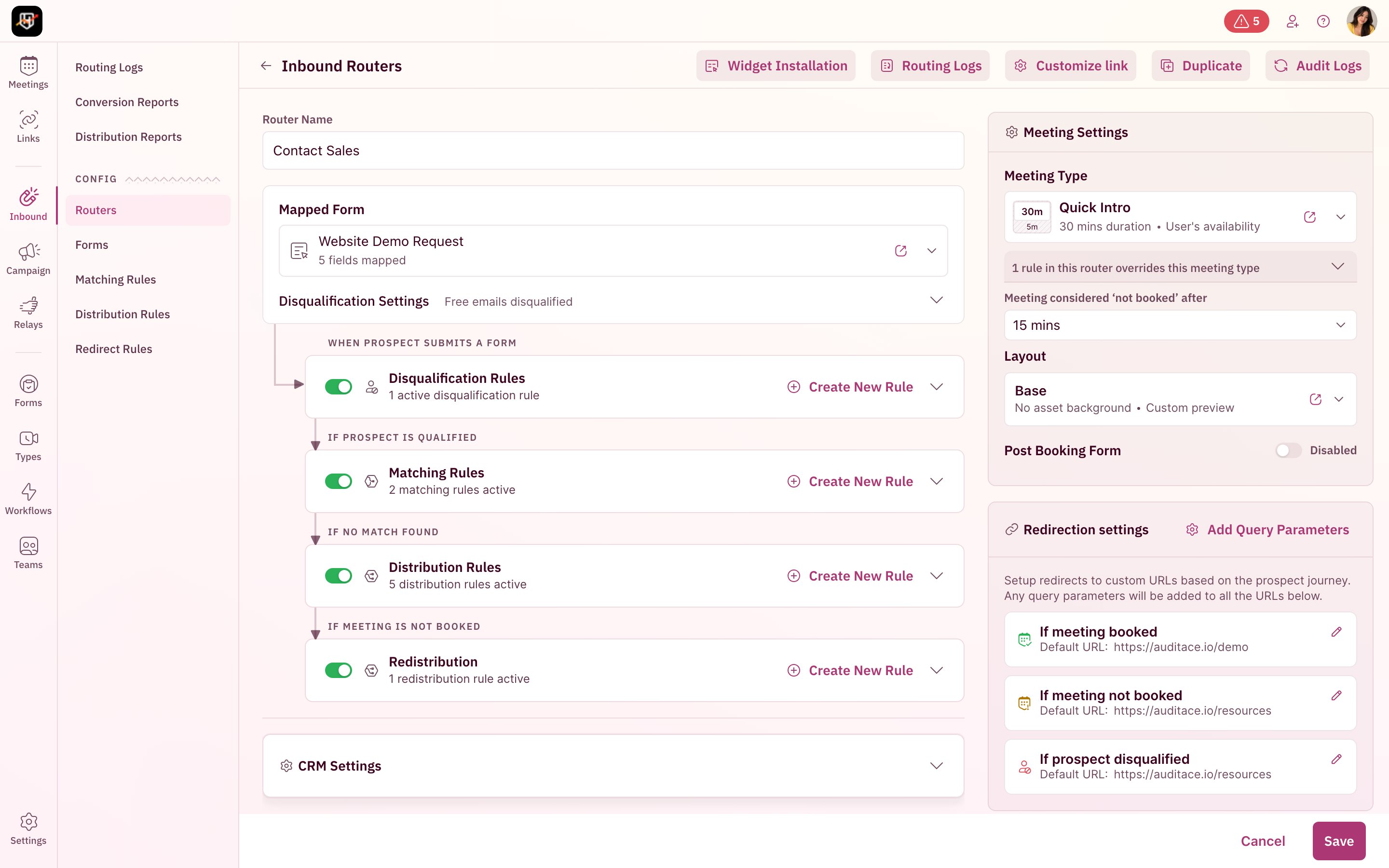
Matching runs after qualification and before territory routing, on every inbound submission.- The prospect submits your form and the submission is enriched.
- Qualification checks whether the prospect fits. Prospects who don’t are disqualified and sent to the page you chose.
- Your matching rules run in the order you set. The first rule that finds a record wins.
- If a rule matches, territory routing is skipped and the prospect sees the owner’s calendar.
- If no rule matches, your distribution rules decide, for example by region or segment.
- Salesforce is updated with the prospect, the owner and the meeting.
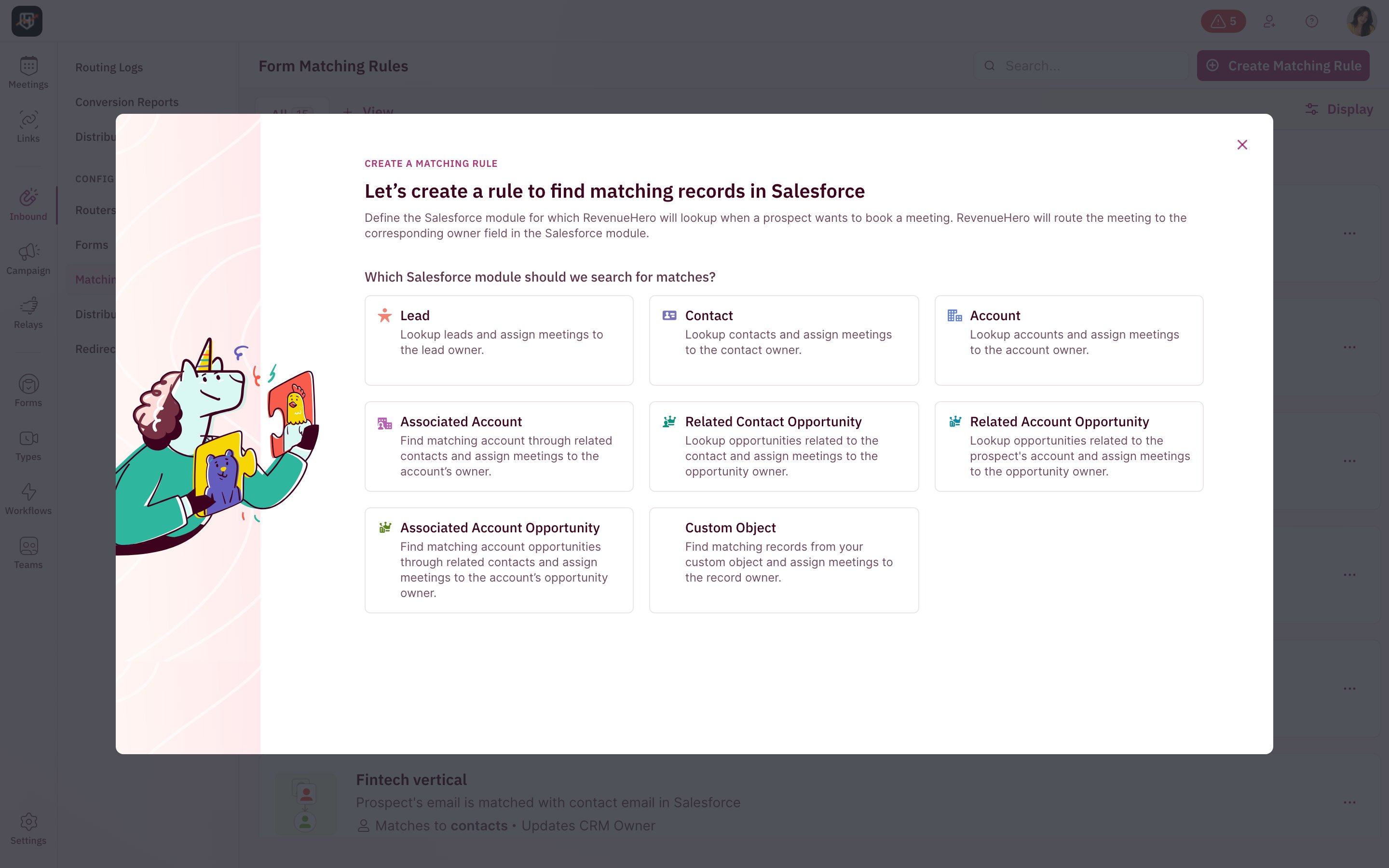
The eight Salesforce match types
Each matching rule looks for one kind of Salesforce record and books the prospect with that record’s owner.The three opportunity match types appear only after Enable Opportunities is turned on in your Salesforce settings.
What each match type looks like in practice
These examples use a B2B team with SDRs, regional AEs and customer success managers. Pick a tab to see who each prospect books with.- People
- Companies
- Opportunities
- Your own objects
A known lead comes back
Lead matchA marketing manager downloaded a guide last month and is still a lead owned by your SDR. Today they request a demo.Books with: that SDR
A named contact asks for time
Contact matchA VP of Sales is already a contact owned by your Mid-Market AE.Books with: the Mid-Market AE
Create a Salesforce matching rule
Step 1: Open matching rules
- In the left sidebar, click Inbound → Matching Rules.
- Click Create Matching Rule in the top-right corner.
- Pick the match type. This decides which Salesforce record RevenueHero looks for and whose owner the prospect books with.
Step 2: Assign meetings
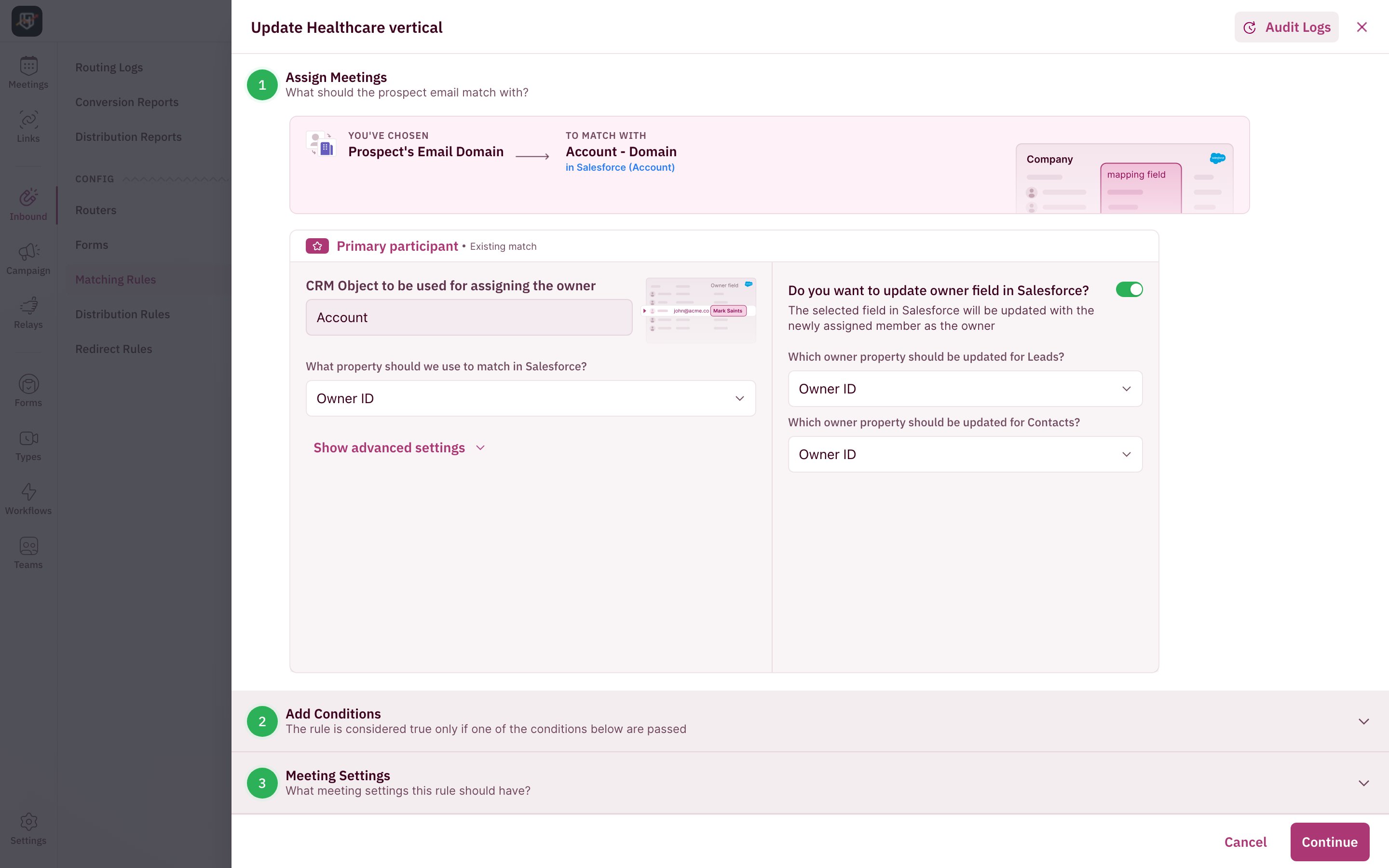
Choose what RevenueHero compares and who takes the meeting.- What to match. Lead, contact and account rules default to the prospect’s email or email domain. You can also match on phone, or compare any form field with a custom object’s field. For example, a prospect whose phone number is already on a contact.
- Owner field. Read the record owner, or any other owner field you keep on the record. For example, a separate SDR owner field, so the SDR takes the first meeting.
- How meetings are assigned. Show the owner’s availability, or the shared availability of everyone who needs to attend. For example, the account owner and the SDR together, at a time both are free.
- Always assign to a specific member. Recognize the relationship but always book with a person or team you choose. For example, a dedicated rep for a strategic segment.
- Update owner field in Salesforce. Write the rep who took the meeting back to Salesforce. You choose the owner field separately for leads and for contacts. For example, the lead’s owner becomes the SDR who booked it.
Step 3: Add conditions
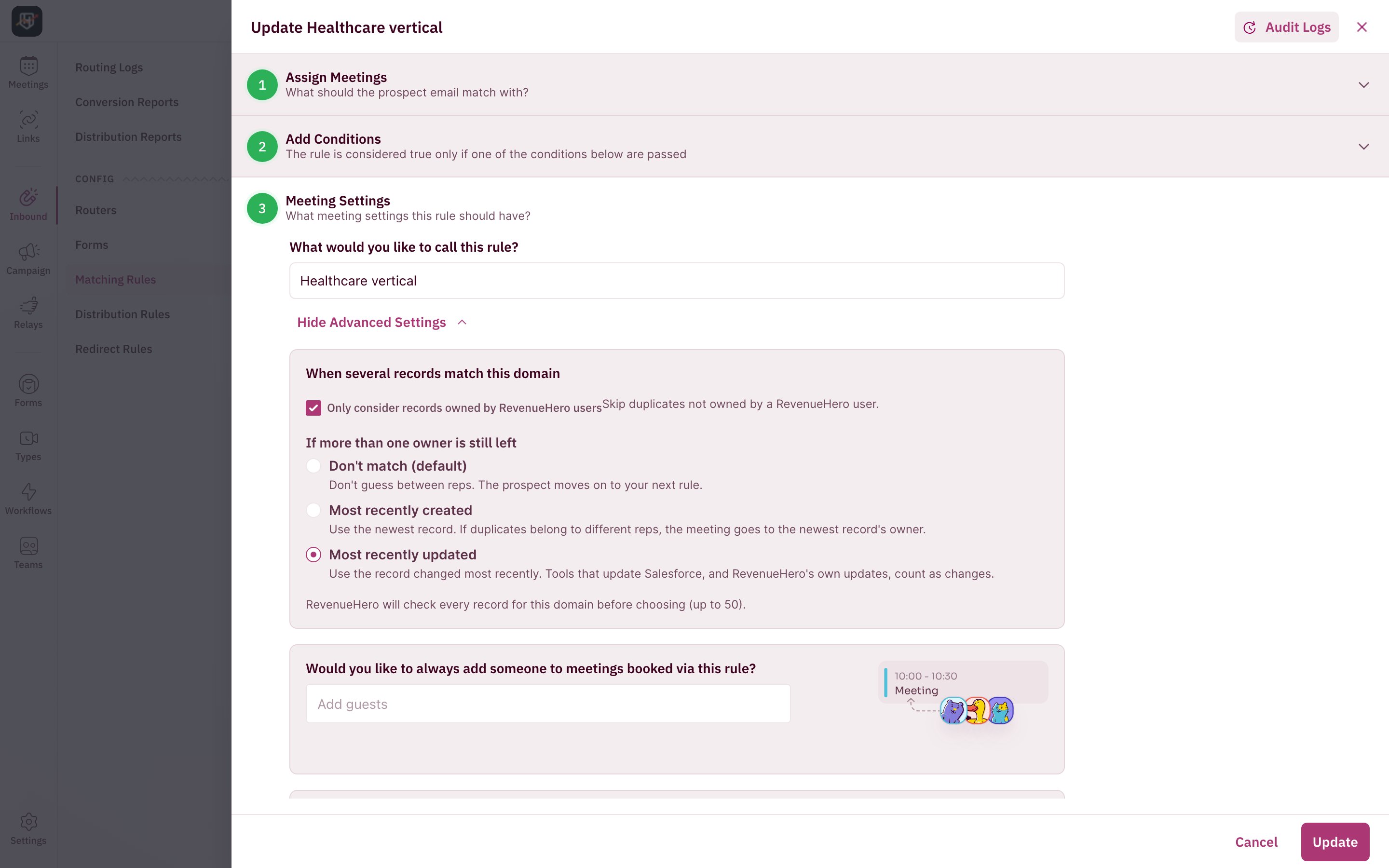
A found record only counts if the conditions you add on its Salesforce fields are also true. For example, match the account owner only when the account’s industry is Healthcare. Add an owner condition when you only want records owned by RevenueHero users to match. With that condition on the rule, a record owned by someone who isn’t a RevenueHero user doesn’t match, and the next rule runs. This covers cases like an account still owned by a rep who has left.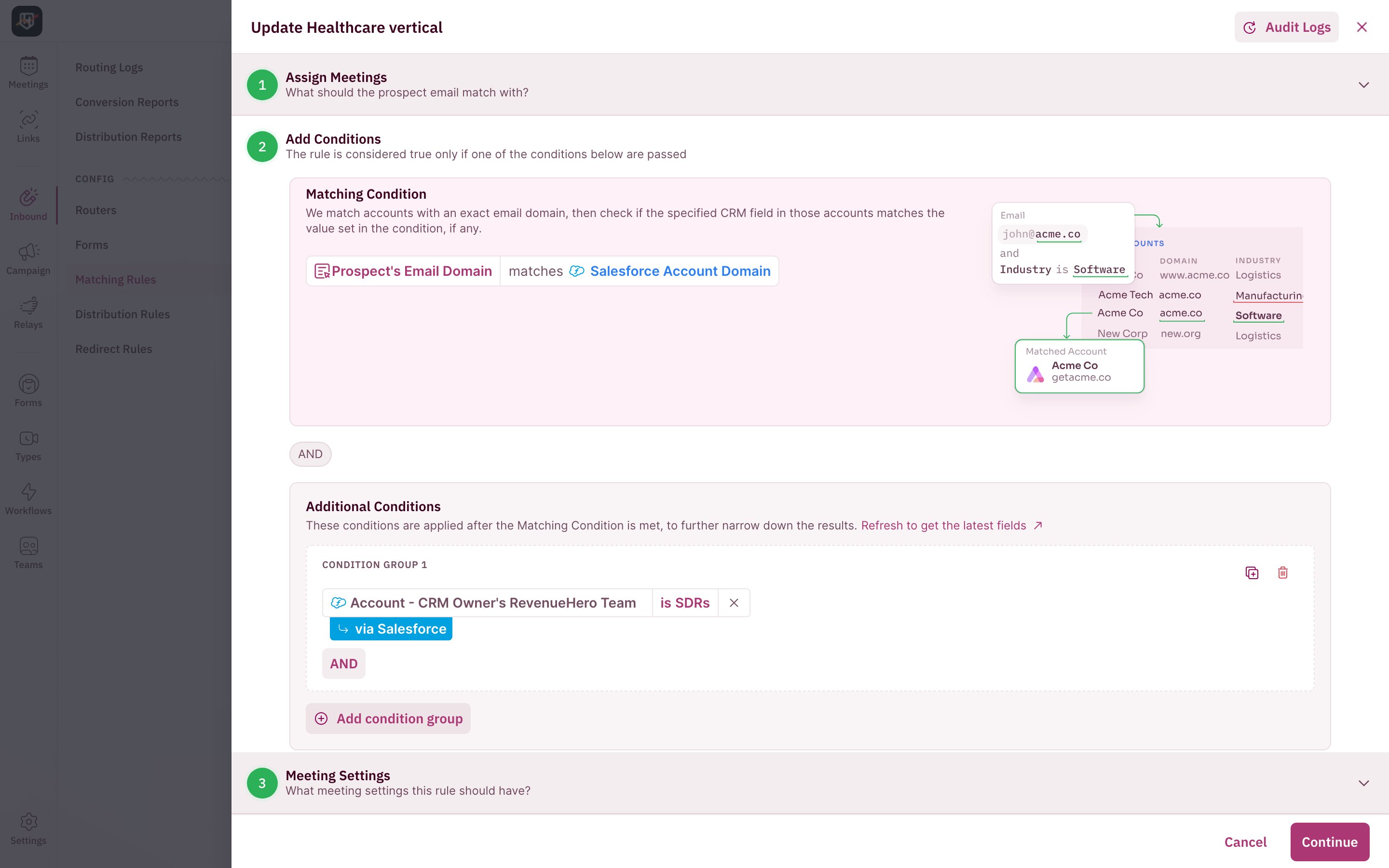
Step 4: Set meeting settings
These settings are optional and apply only to meetings booked through this rule.- When several records match this domain (account rules). If more than one account shares a domain, choose Don’t match (the default, so the prospect moves to the next rule), Most recently created or Most recently updated. For example, two accounts share a domain after an acquisition.
- Fuzzy matching (contact rules). If there’s no contact with the exact email, RevenueHero uses another contact with the same email domain. A new colleague of a known contact then routes like that contact. This is only available when the rule matches on email.
- Always add guests to meetings booked through this rule.
- Override default meeting settings to use a different meeting type. For example, known accounts get a 30-minute discovery call with their AE.
- Override redirect URLs to send prospects to their own page after booking, or when they don’t book.
Step 5: Add the rule to your router and set the order
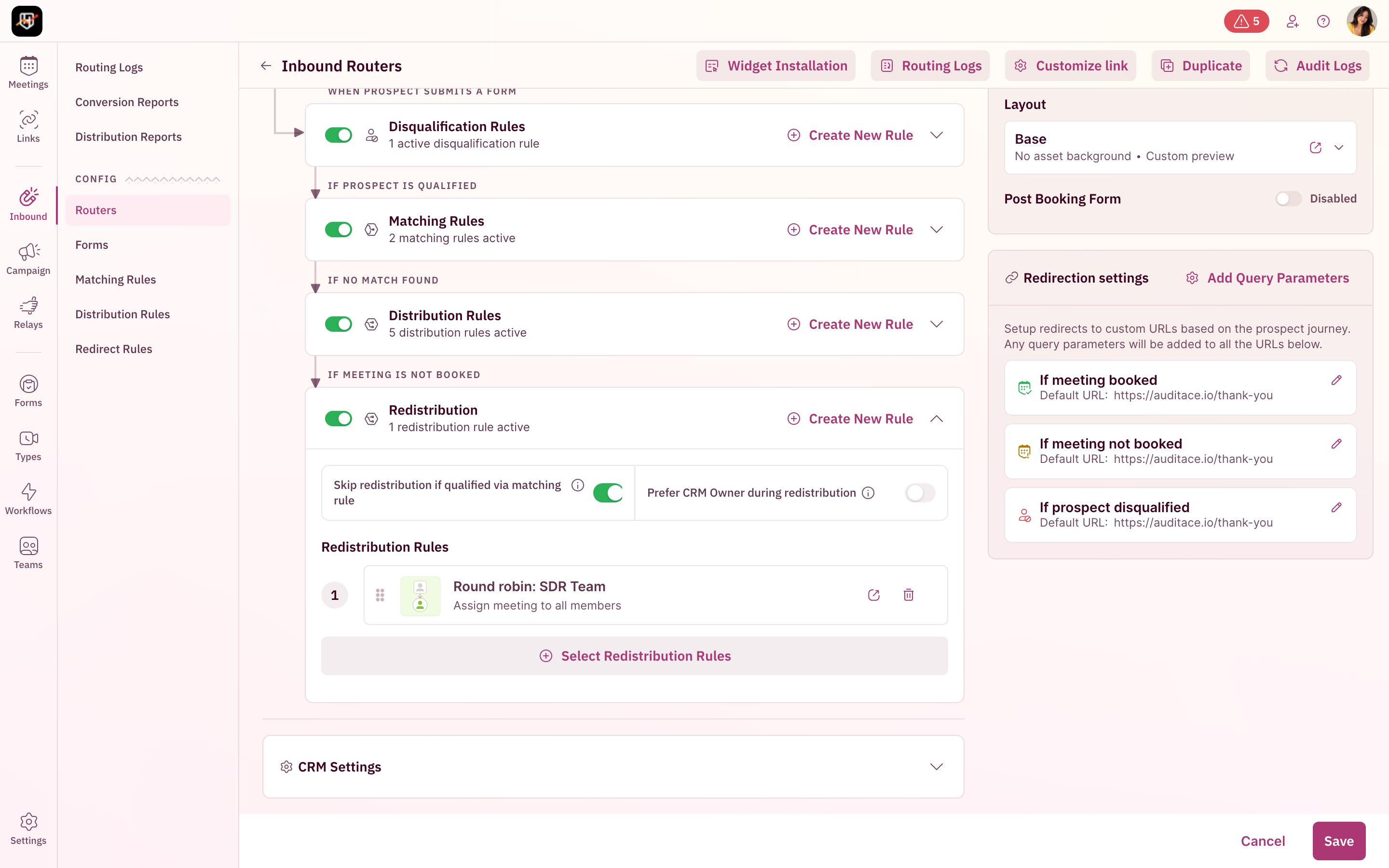
Add the rule to your inbound router’s matching rules. Rules run top to bottom and the first match wins, so put the most specific relationship first.What happens after the match
To keep matched prospects with their owner, open the router, expand Redistribution and turn on Skip redistribution if qualified via matching rule.
Salesforce settings behind the rules
These live in your Salesforce integration settings and shape what your rules can do.- Enable Opportunities. Turn this on once to use the three opportunity match types.
- Custom objects. Add any custom object, then match on its fields.
- Refresh fields. Fields you’ve just created in Salesforce don’t appear in rules until you refresh fields.
- Leads, contacts or both. Choose which records RevenueHero creates and updates.
Your Salesforce matching rules now send known prospects to the rep who already owns the relationship.
What are Matching Rules?
How matching fits into a router, for any CRM.
How to create a Matching Rule?
Matching rules for campaign routers and Relays.
How to integrate Salesforce CRM?
Connect Salesforce before you build rules.
Routing Logs
See why each prospect reached a rep.