

- Distribution Rules (used in Inbound Routers)
- Distribution Pods (used in Relay Routers)
How Subgroups Work
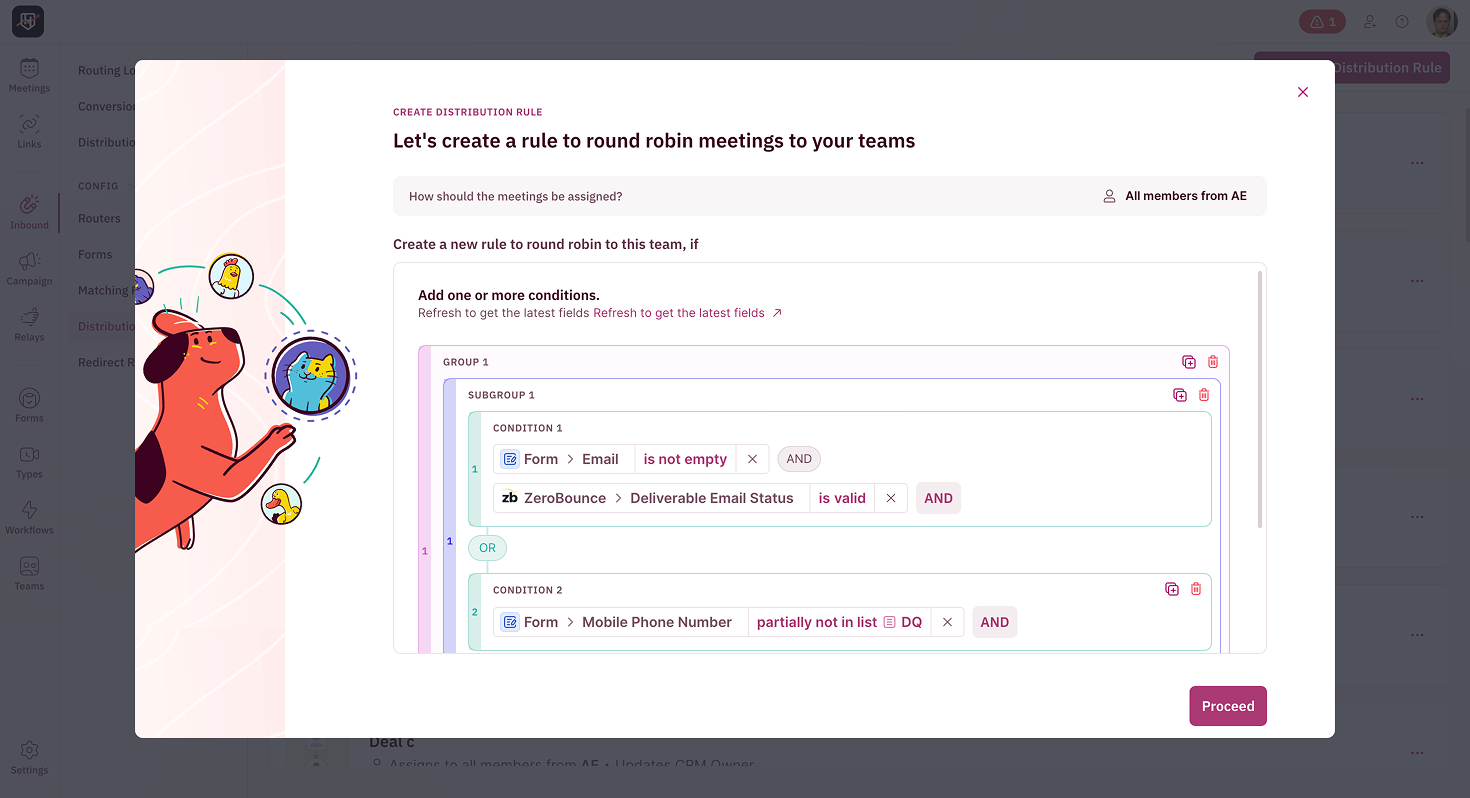
Here’s how conditions are evaluated when you use subgroups:BEFORE WE BEGIN
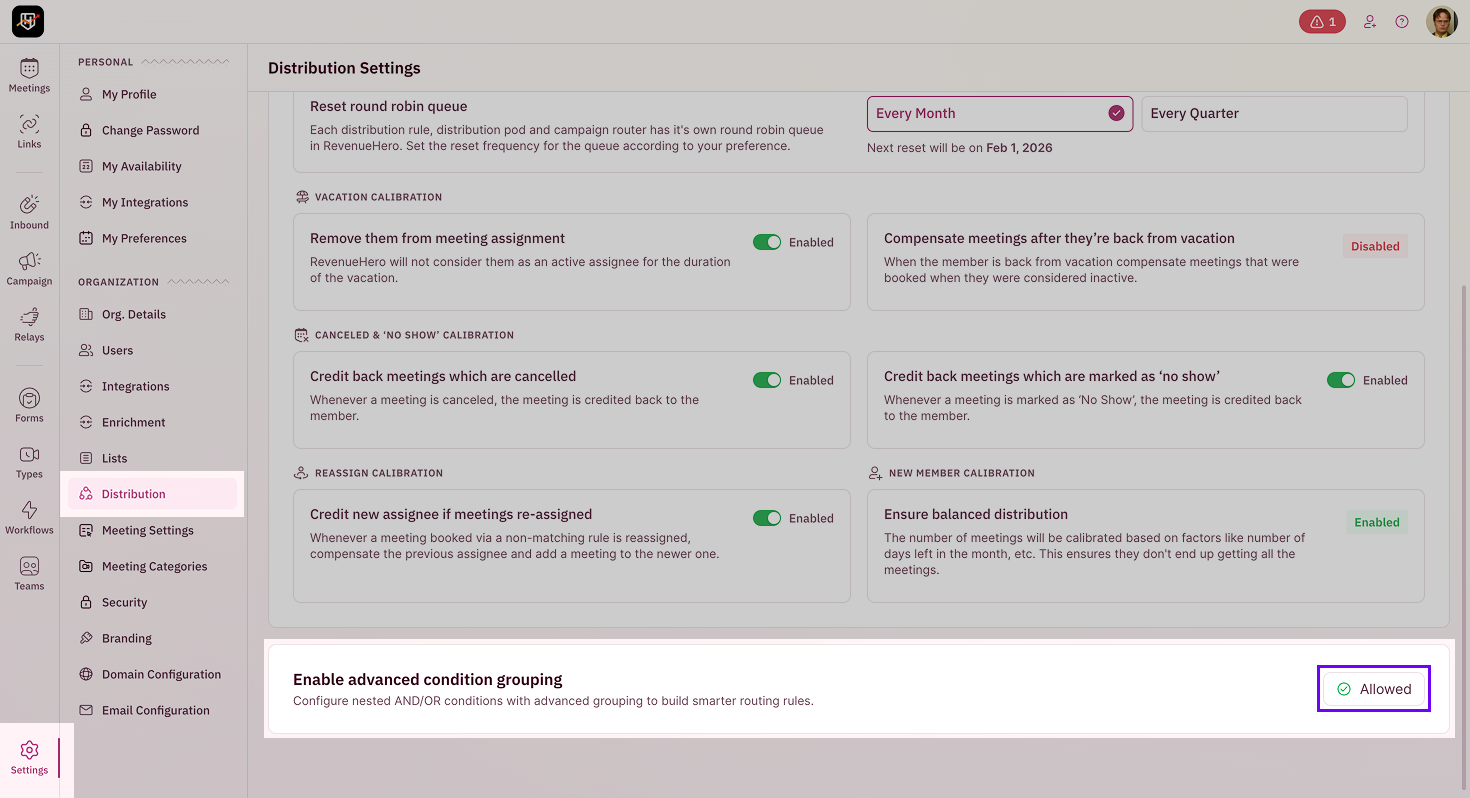
Enable Advanced Condition Grouping
Go to Settings → Distribution → Enable advanced condition grouping-
Set the toggle to Allowed
Create Teams
You’ll also need to have Teams already created before setting up distribution rules or pods with subgroups.
Adding Subgroups to Distribution Rules
Use subgroups in Distribution Rules to organize complex qualification logic for your Inbound Routers.1
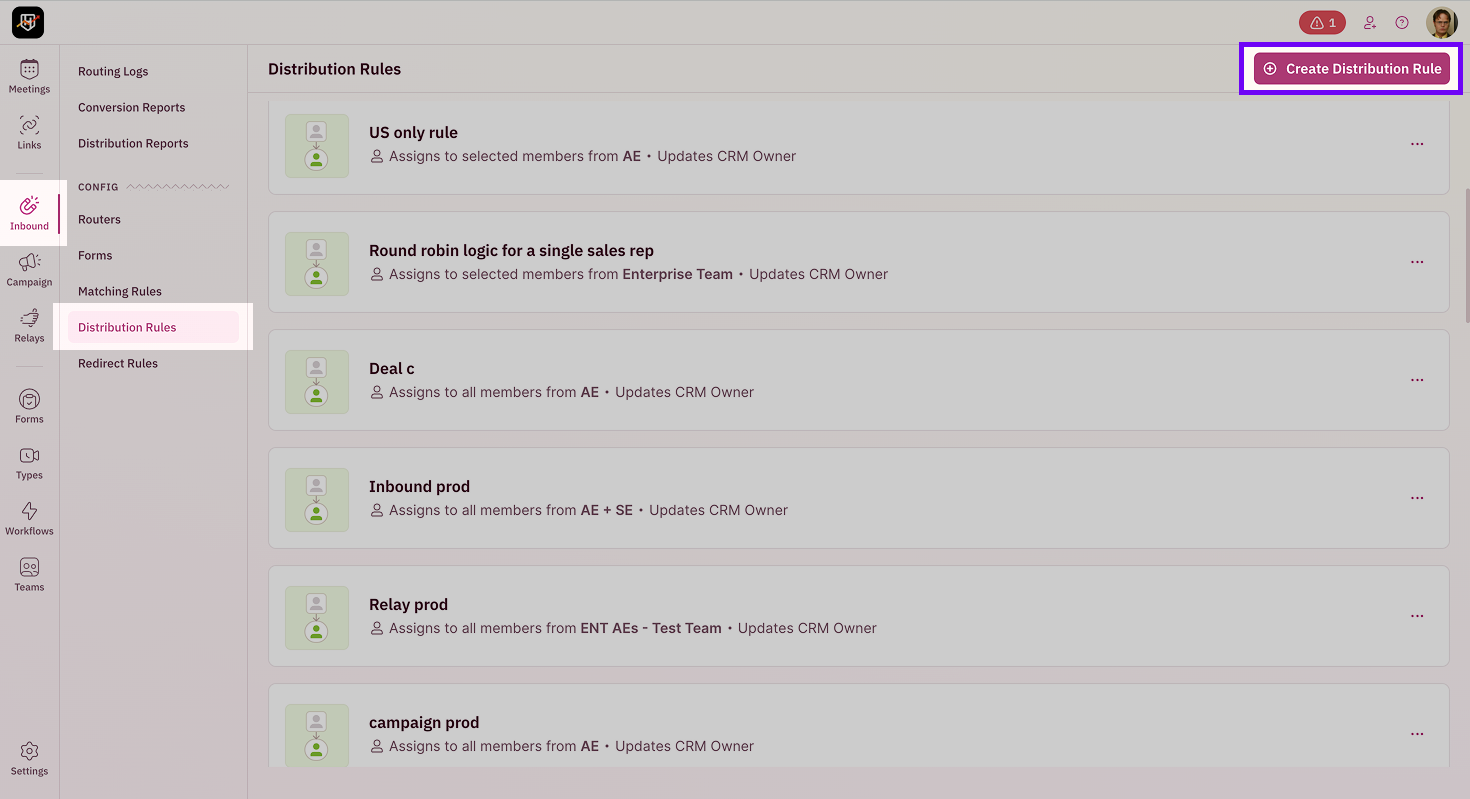
Navigate to Distribution Rules
Go to Inbound → Distribution Rules and either:
- Click Create Distribution Rule to start fresh, or
-
Select an existing rule to edit
2
Set Up Team Assignment
Choose how meetings should be assigned:
- Single team round robin - Assign to members within one team
- Collective round robin - Assign across multiple teams
3
Add Condition With Subgroups
In the Add Conditions section, click Add Condition With Subgroup.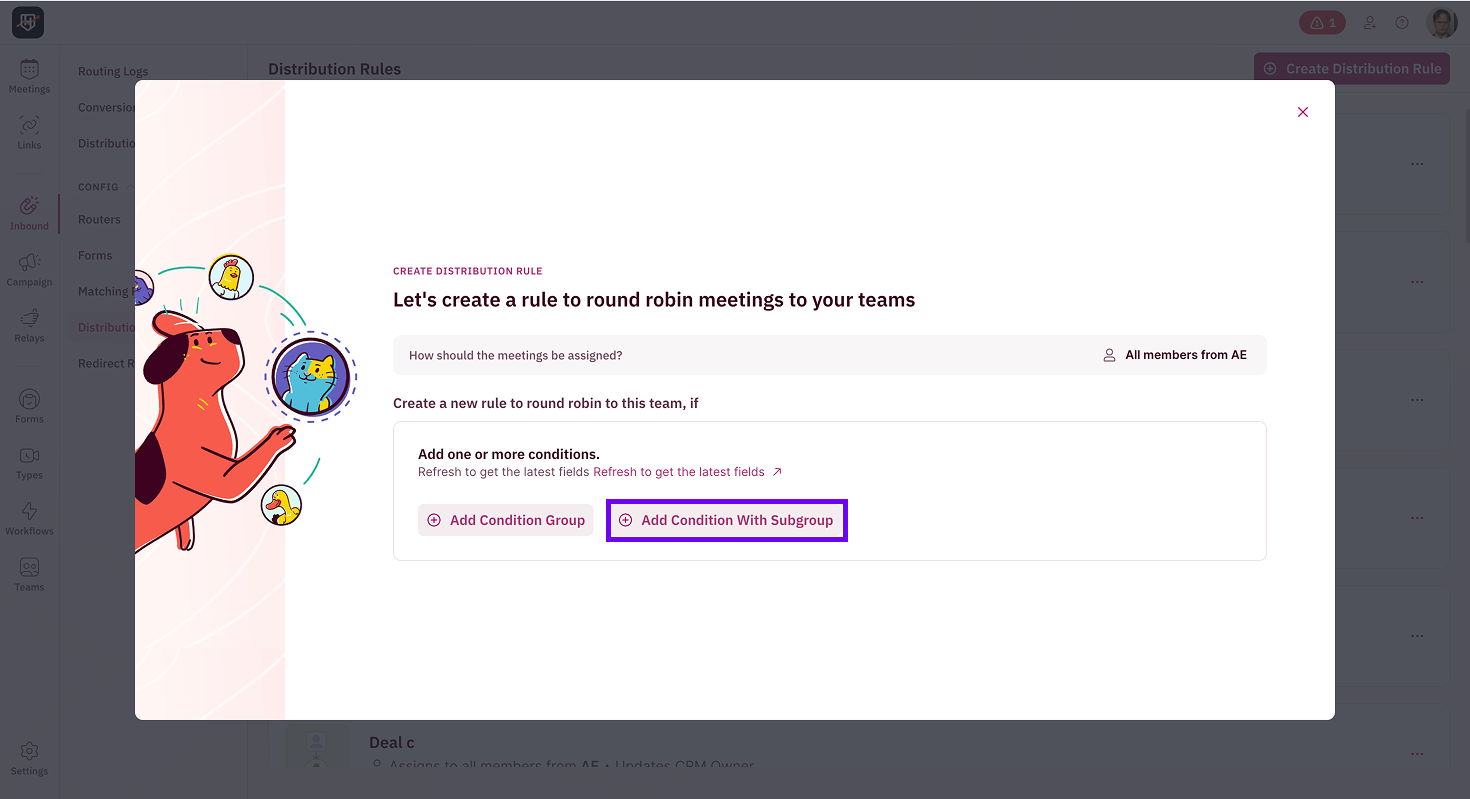
- Form Inputs - Data submitted through your form
- HubSpot Properties or Salesforce Fields - Data from your connected CRM
- Enrichment - Data from enrichment providers like Ocean, Apollo, Clearbit, or Crustdata
4
Build Your First Subgroup
Click on a field to add it as a condition. For example: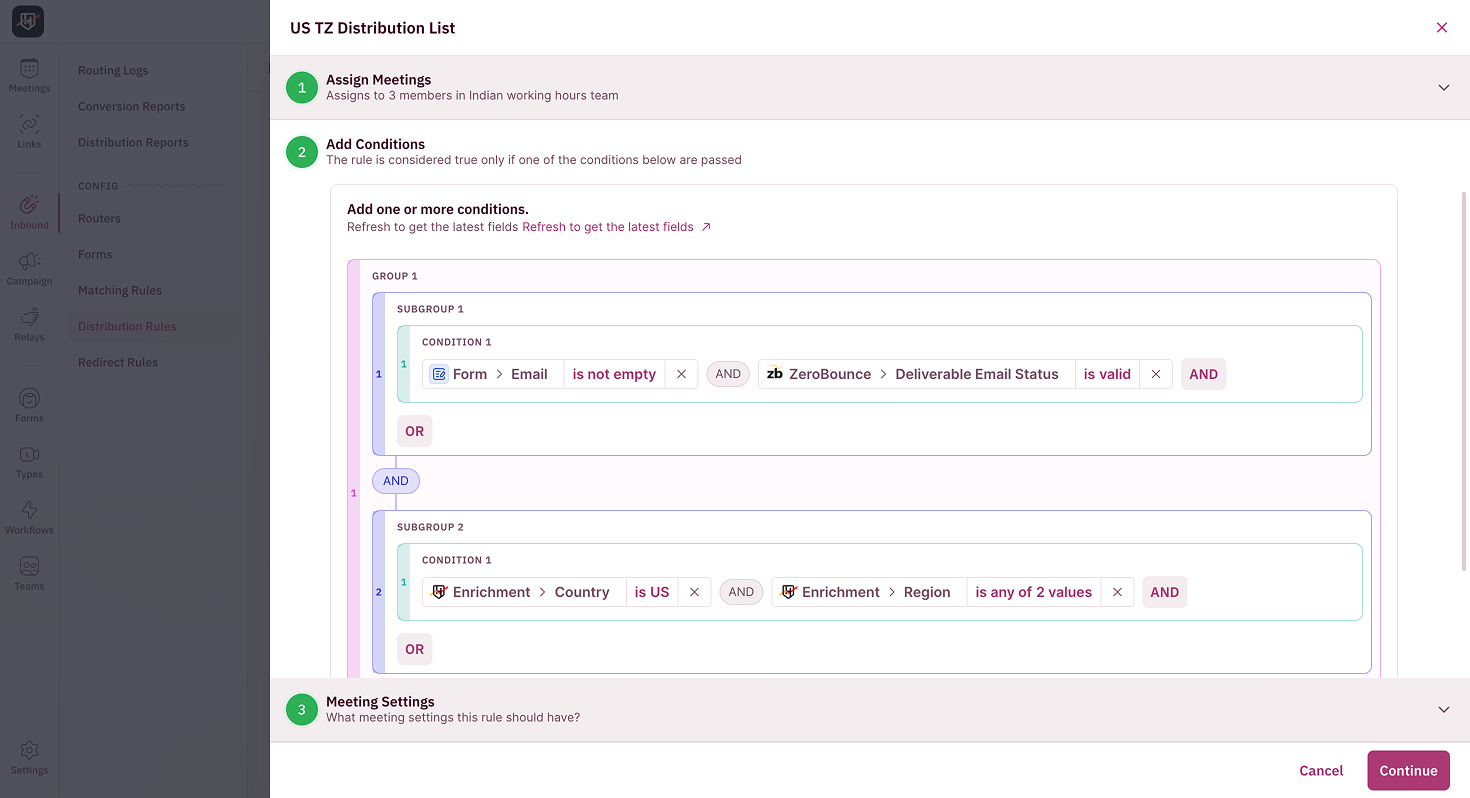
- Select Country from HubSpot Properties
- Choose an operator (equals, contains, is not empty, etc.)
- Enter the value: “United States”
5
Add More Subgroups or Groups
To add another subgroup within the same group:
Click Add Subgroup within that group. This creates an alternate qualification path using OR logic.To add another group:
Click Add Condition Group / Add Condition with Subgroup at the bottom. This creates a completely separate qualification path that also uses OR logic at the top level.You can nest subgroups within subgroups for even more complex logic.6
Continue Setup
Adding Subgroups to Distribution Pods
Use subgroups in Distribution Pods to organize qualification logic for your Relay Routers.1
Navigate to Distribution Pods
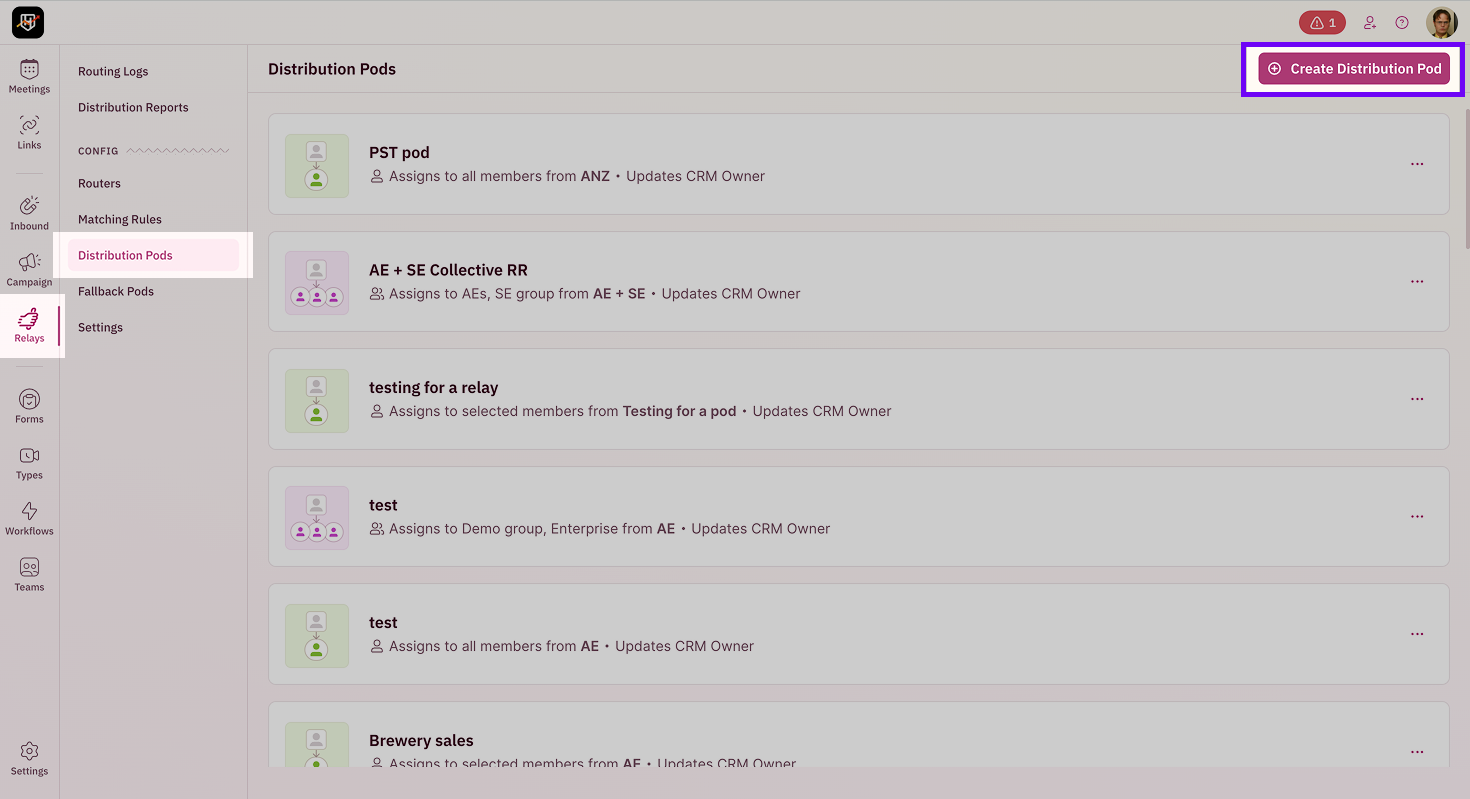
Go to Relays → Distribution Pods and either:
- Click Create Distribution Pod to start fresh, or
-
Select an existing pod to edit
2
Set Up Team Assignment
Choose how meetings should be assigned:
- Single team round robin - Assign to members within one team
- Collective round robin - Assign across multiple teams
3
Add Condition with Subgroups
In the Add Conditions section, click Add Condition With Subgroup.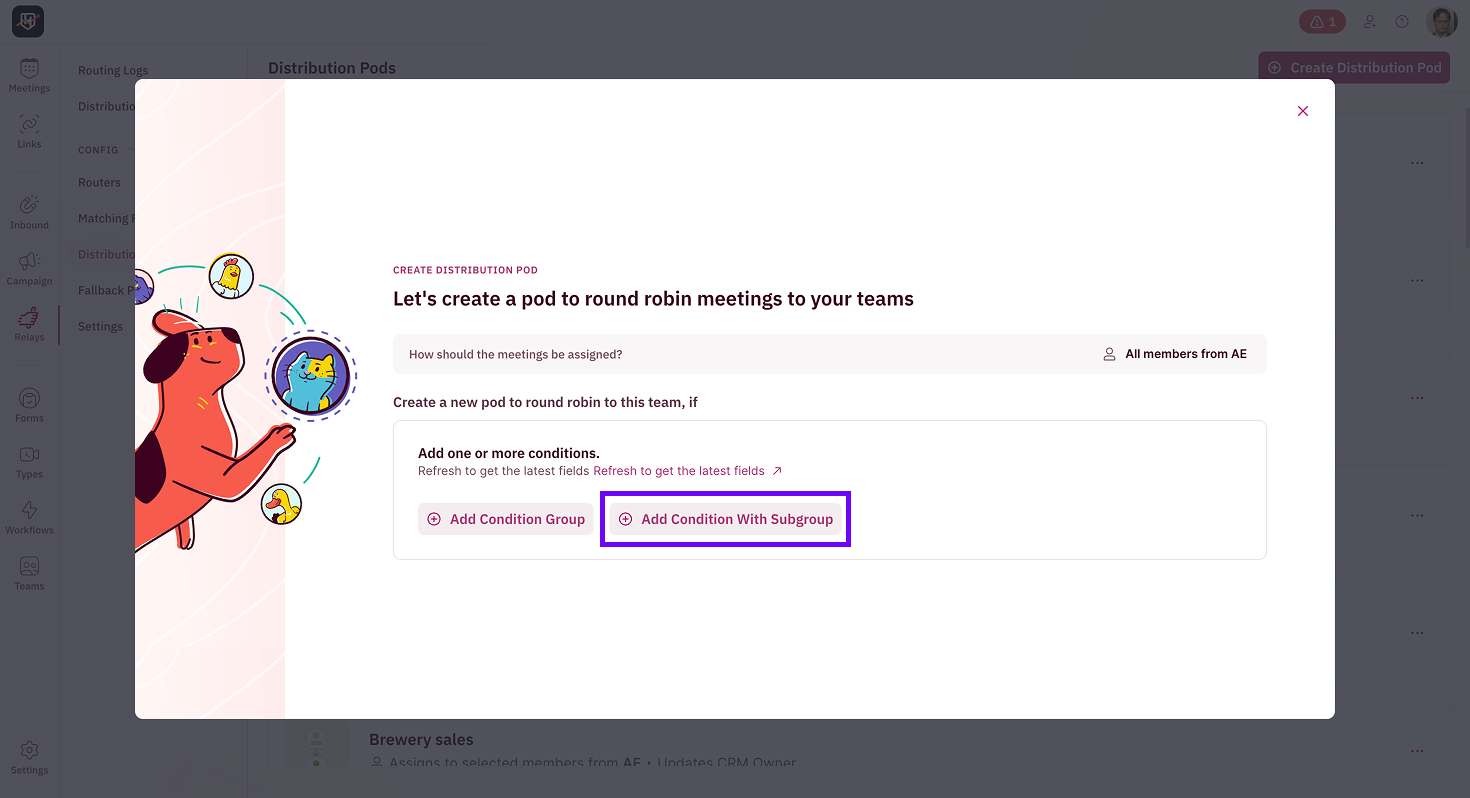
4
Build and Organize Your Subgroups
Follow the same process as Distribution Rules:
- Add conditions within subgroups (connected by AND)
- Add multiple subgroups within groups (connected by OR)
- Add multiple groups (connected by OR)
- Nest subgroups within subgroups as needed
5
Continue Setup
Once your conditions are configured, click Proceed and review the distribution rule. Click I’m happy with the pod to finish.Your distribution pod with subgroups is ready to use in your Relay Router!
Best Practices
- Start with groups, then add subgroups. Think about your major qualification categories first (regions, deal sizes, product lines), then break them into specific subgroups.
- Use subgroups for “AND” logic, groups for “OR” logic. If conditions must ALL be true, put them in one group. If ANY could qualify a lead, create separate subgroups or groups.
- Keep subgroups focused. Each subgroup should represent one clear qualification path. Put your most common qualification paths first.
- Test as you build. Use the Refresh to get the latest fields link to ensure you’re seeing current data from your CRM and enrichment sources.
- Your CRM fields are correctly mapped and contain data
- Enrichment providers are properly configured
- The team members in your distribution rule/pod have connected calendars